
Guide
Best AI mockup generator
DKARTE turns a single design file into photoreal product mockups — phone cases, device screens, billboards, and posters — in about a minute. Unlike tools that let AI redraw your artwork, we render the product and the light with AI and composite your original file on top, so logos and type stay exactly as you made them. Below is the full guide to using the generator.
How to use the AI mockup generator
Eight steps from a flat design file to a finished, editable mockup set — with a screenshot of every screen you will see.
Step 01
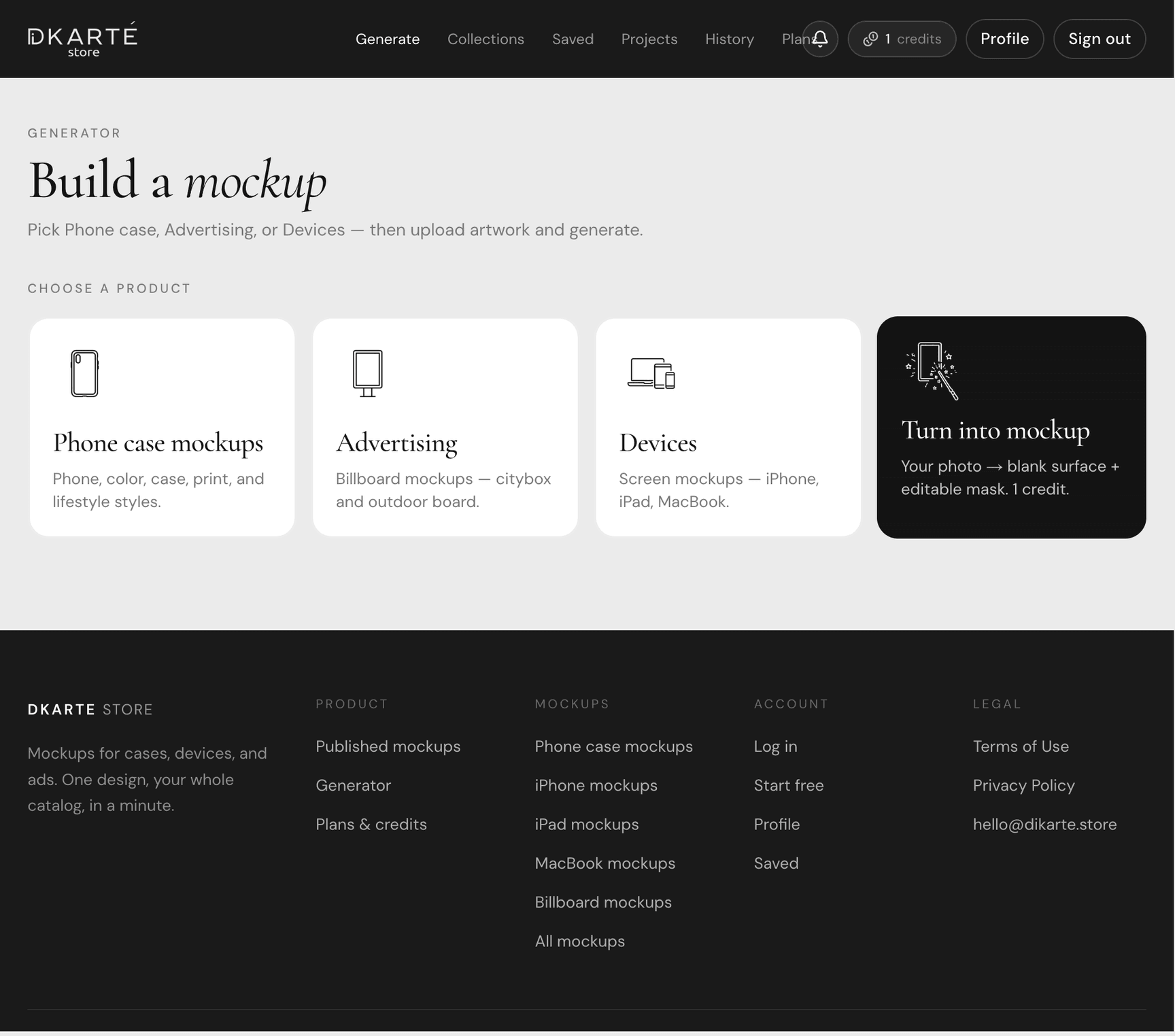
Pick a product to mock up
Open the generator and choose a surface: a phone case, a device screen (iPhone, iPad, MacBook), outdoor advertising (billboard, citybox, poster), or your own photo turned into a reusable mockup template.
Each product asks only for the settings it needs, so the form stays short — the phone case flow walks through brand, model, and case, while the billboard flow starts from the format.
Step 02
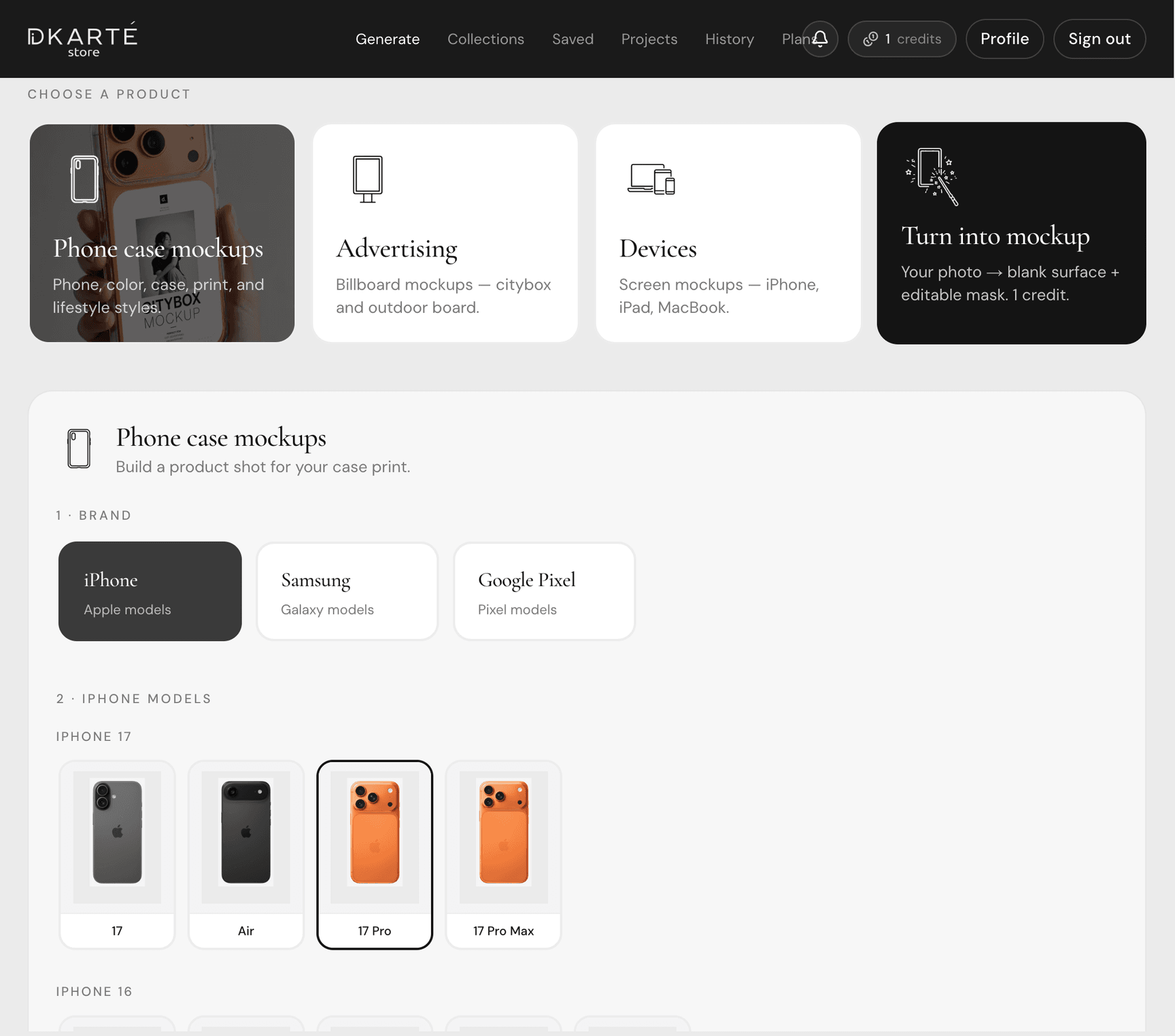
Choose the brand and the exact model
For phone cases, pick the brand — iPhone, Samsung Galaxy, or Google Pixel — and then the exact model. Every model has its own camera block and proportions, so the generated case fits the real device.
Models go back several generations, so you can shoot a whole product line without rebuilding the scene each time.
Step 03
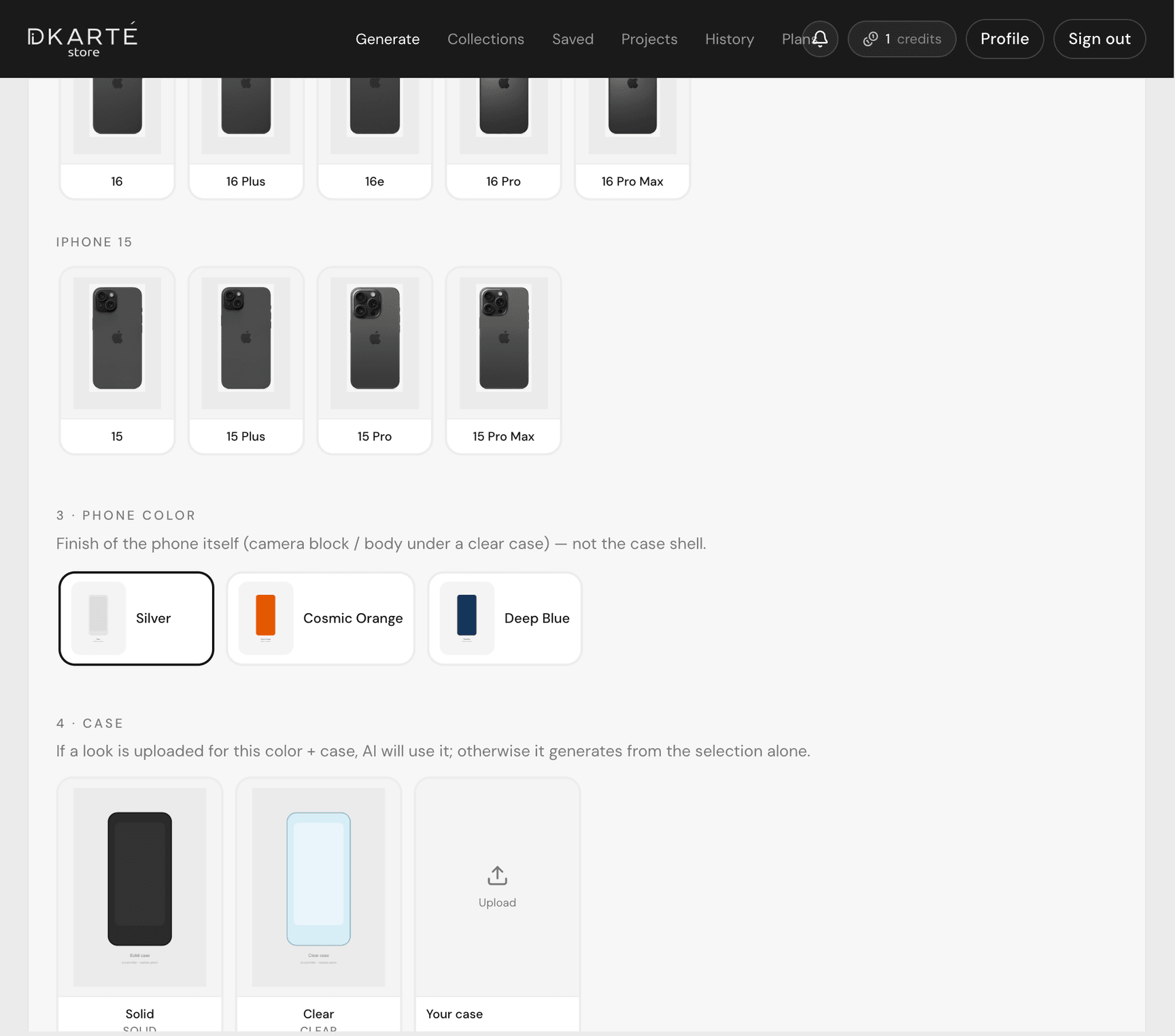
Set the phone color and case type
Choose the finish of the phone itself and whether the case is solid or clear. With a clear case the phone body shows through your artwork, which changes how the print reads.
You can also upload your own case reference so the AI matches a shell you already manufacture.
Step 04
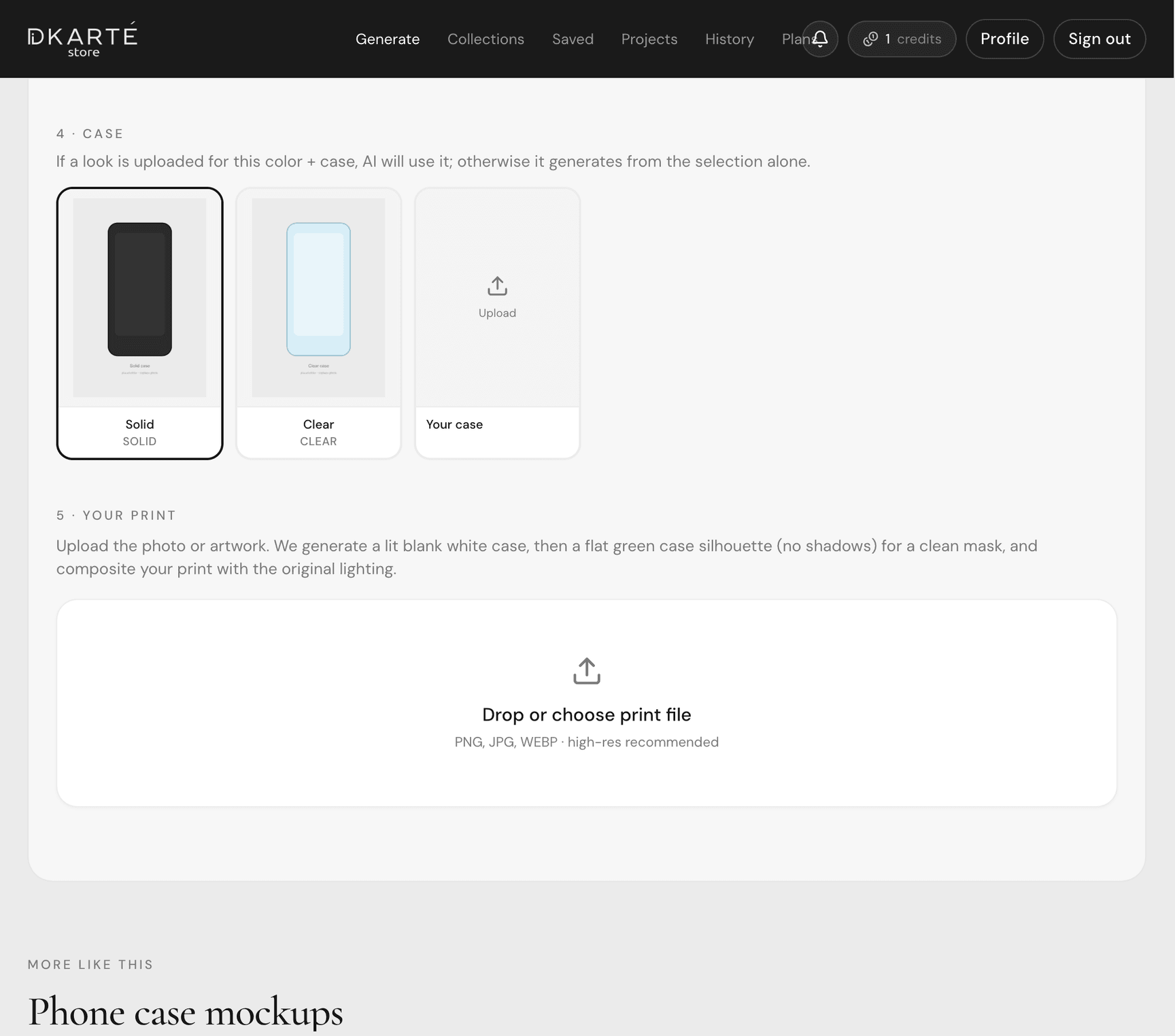
Upload your design
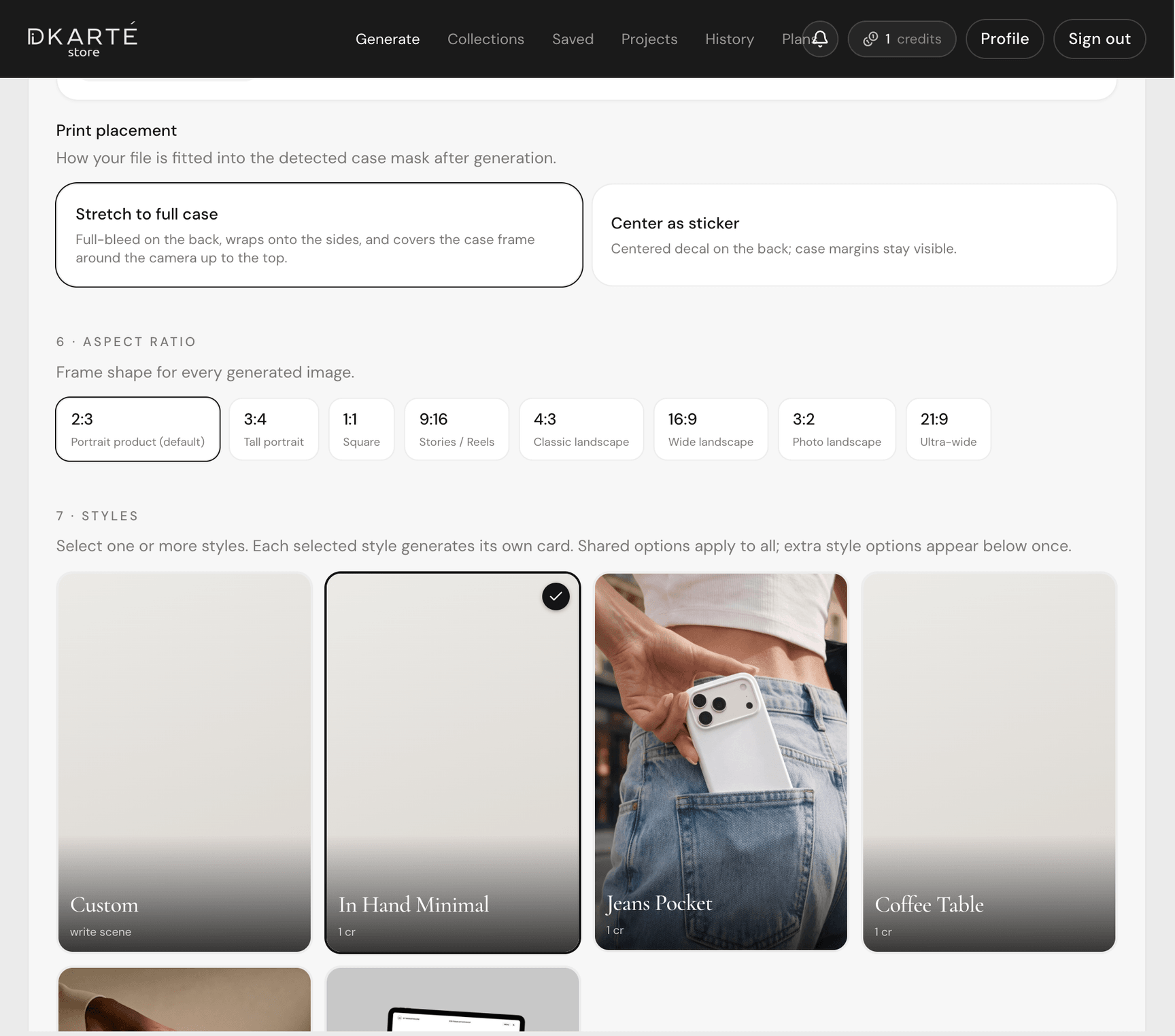
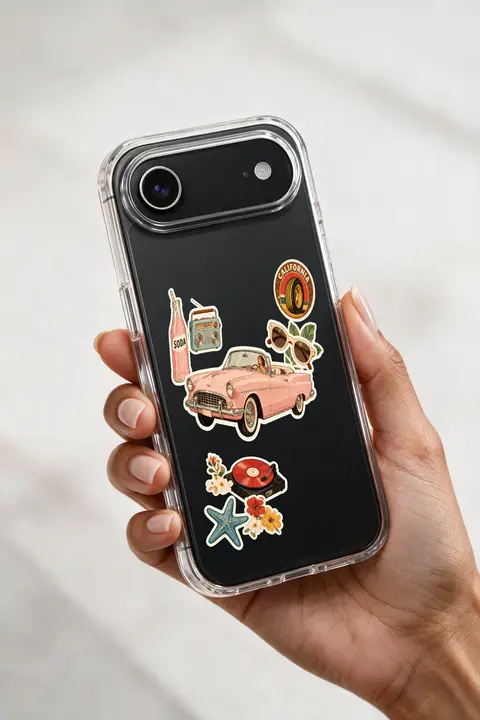
Drop in the artwork you want on the product: a case print, an app screenshot, a UI export, or a poster. Then pick the placement — stretch to the full case or center it as a sticker.
Upload the highest-resolution file you have. The generator composites your original file onto the AI-rendered surface, so logos and type are never redrawn.
Step 05
Choose the aspect ratio and styles
Pick the frame shape you need — 2:3 for product pages, 1:1 for marketplaces, 9:16 for Stories — then select one or more styles: in-hand, jeans pocket, coffee table, rim light, or your own written scene.
Each selected style renders its own card, so one upload can produce a full set in a single run.
Step 06
Generate — standard or 4K
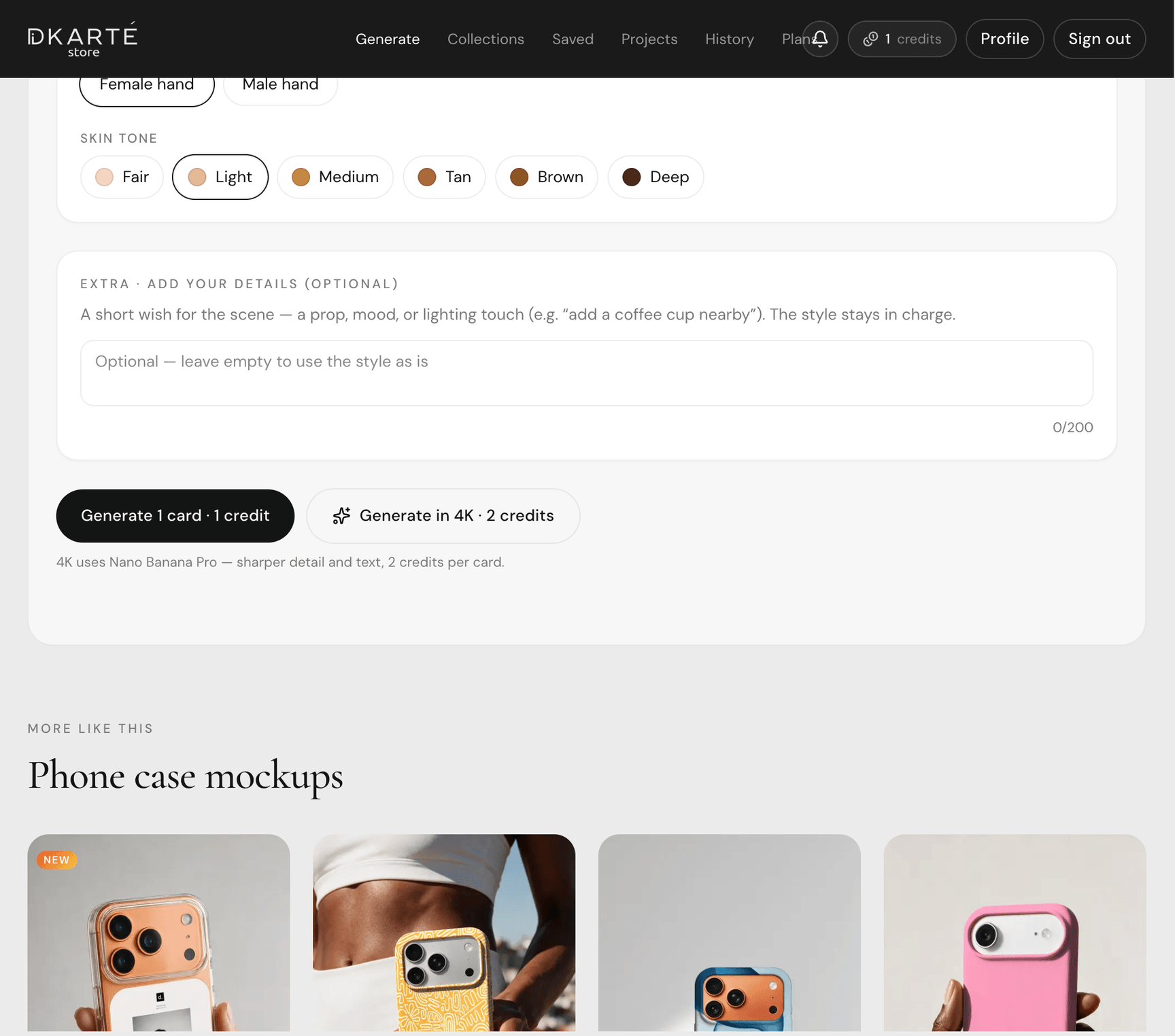
Hit generate and watch the progress stream; a mockup typically lands in about a minute. Standard renders cost 1 credit per style card.
The 4K button uses Nano Banana Pro for sharper detail and text at 2 credits per card — the right pick for print and hero banners.
Step 07
Fine-tune in the print editor
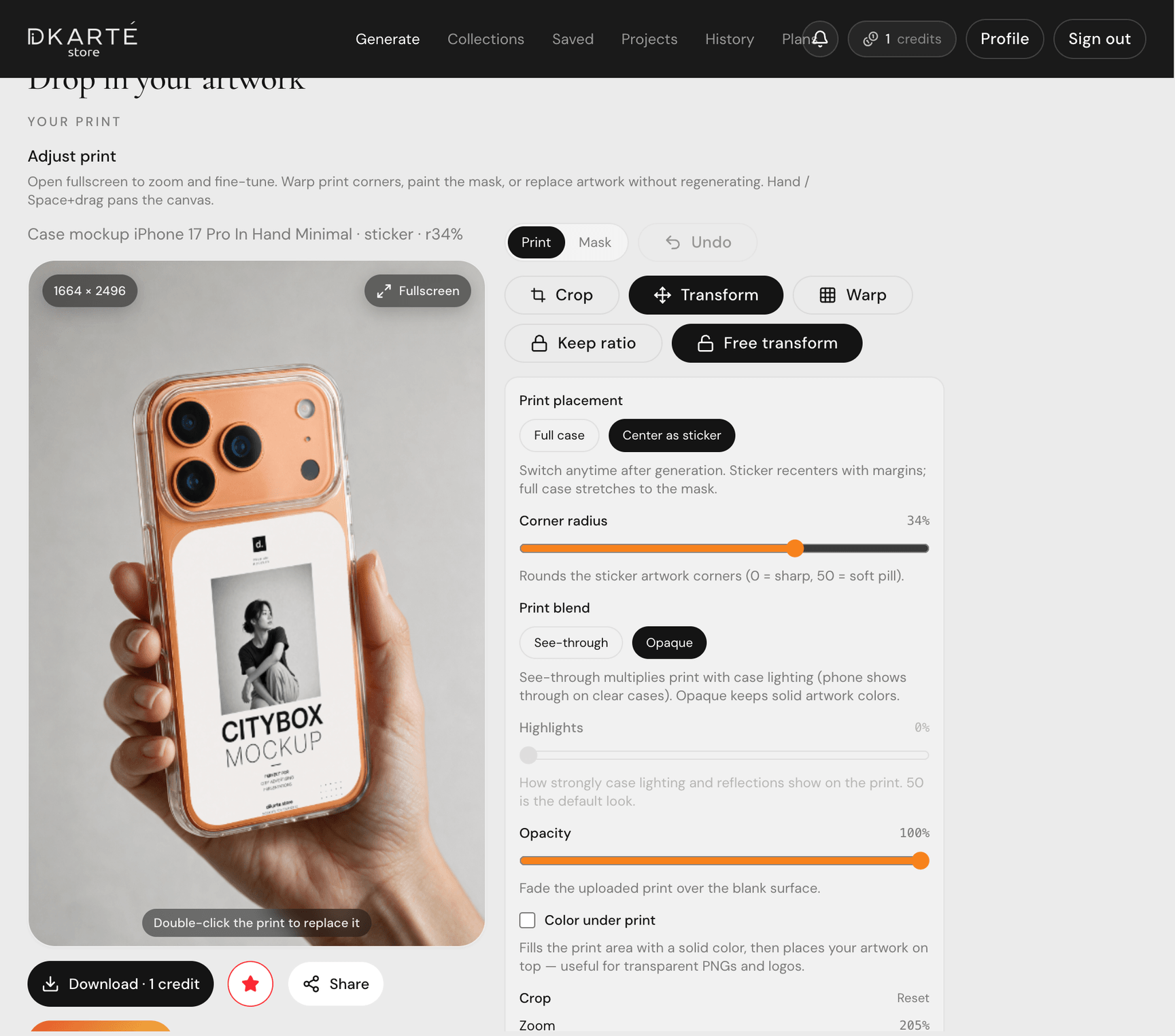
Open the result in the editor to place the design exactly where you want it: Transform drags the four corners, Warp bends the print over curved surfaces, and Crop zooms into the artwork. Keep ratio locks proportions, Free transform releases them.
You also get blend modes, an opacity slider, corner radius for sticker prints, a mask brush, and a resolution badge showing the exact output size.
Step 08
Download, reuse, and share
Download the finished mockup, save it into a project so one print can be re-composited across the whole set, or share a public link and publish it to the catalog.
Swap the artwork later and re-apply it to every item in the project instead of regenerating from scratch.
What you can mock up
Phone case mockups
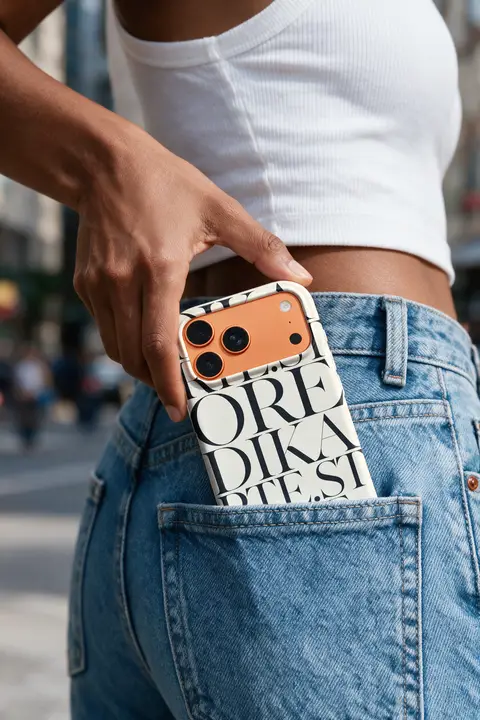
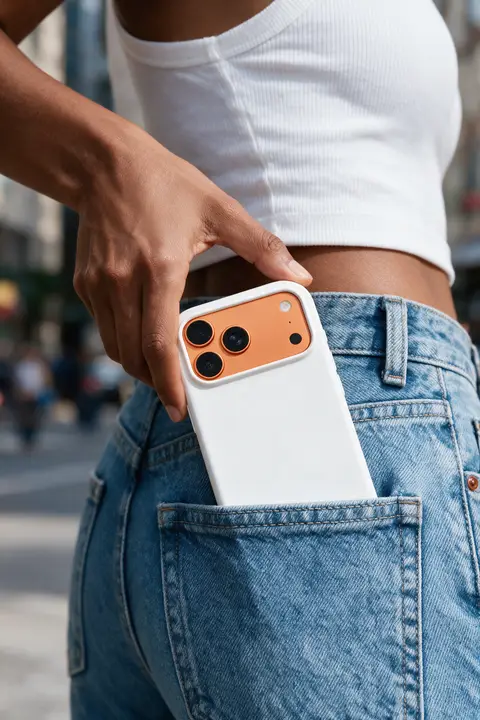
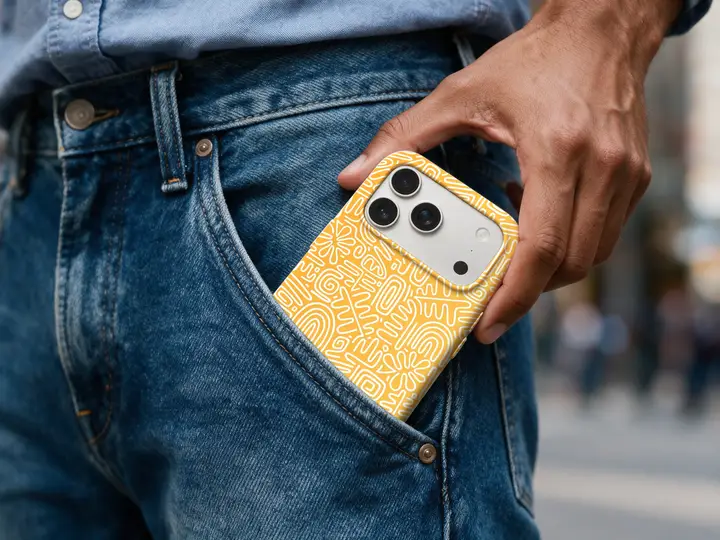
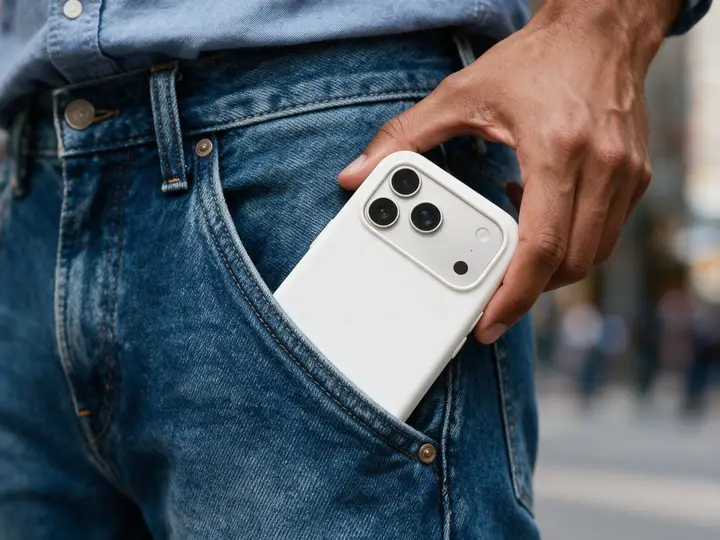
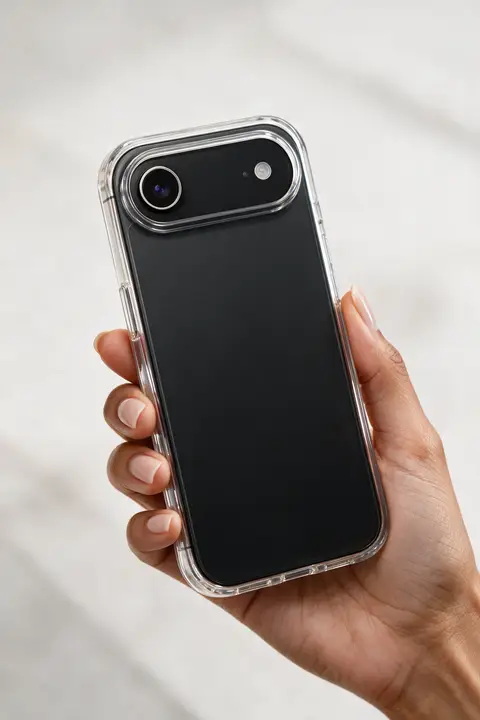
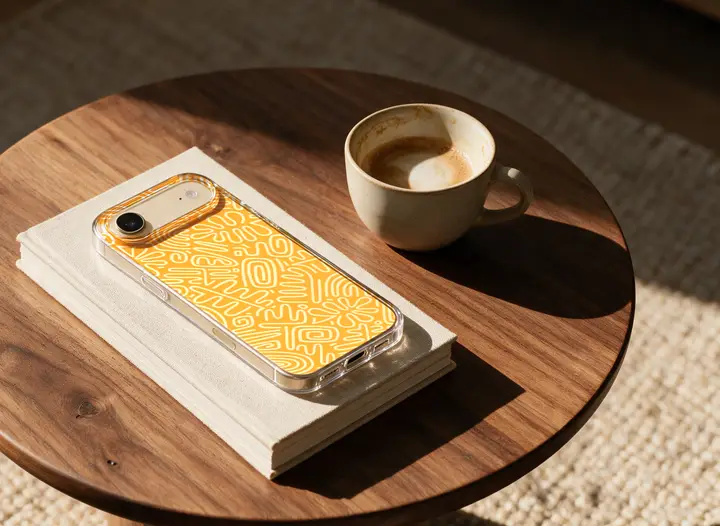
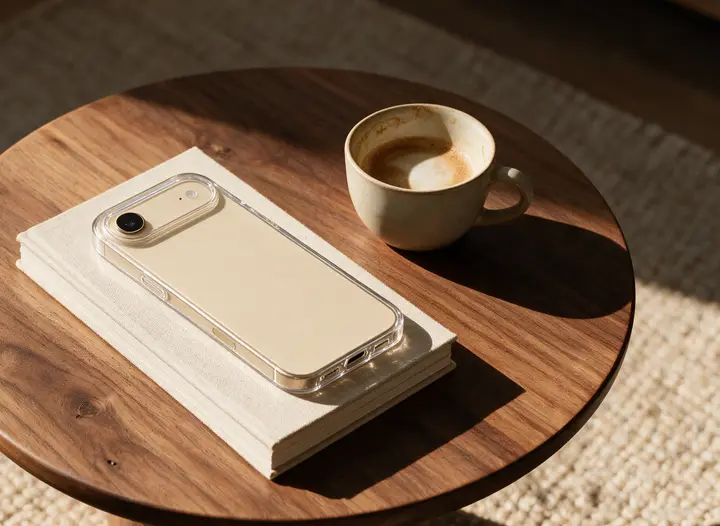
iPhone, Galaxy, and Pixel cases with your print applied. Choose the model, phone color, and case material, then a studio, in-hand, or lifestyle scene.
Device screen mockups
iPhone, iPad, and MacBook screens for app and web UI. Drop in a screenshot, add the iPhone status bar or browser chrome, and get a shot that looks photographed.
Billboard and poster mockups
Outdoor advertising in real environments: billboards, cityboxes, and posters, sized to the format you need for a client pitch.
Your photo into a mockup
Upload any photo — a t-shirt, a package, a shop window — mark the surface, and reuse it as an editable template for every future design.
Shortcut: start from a ready mockup
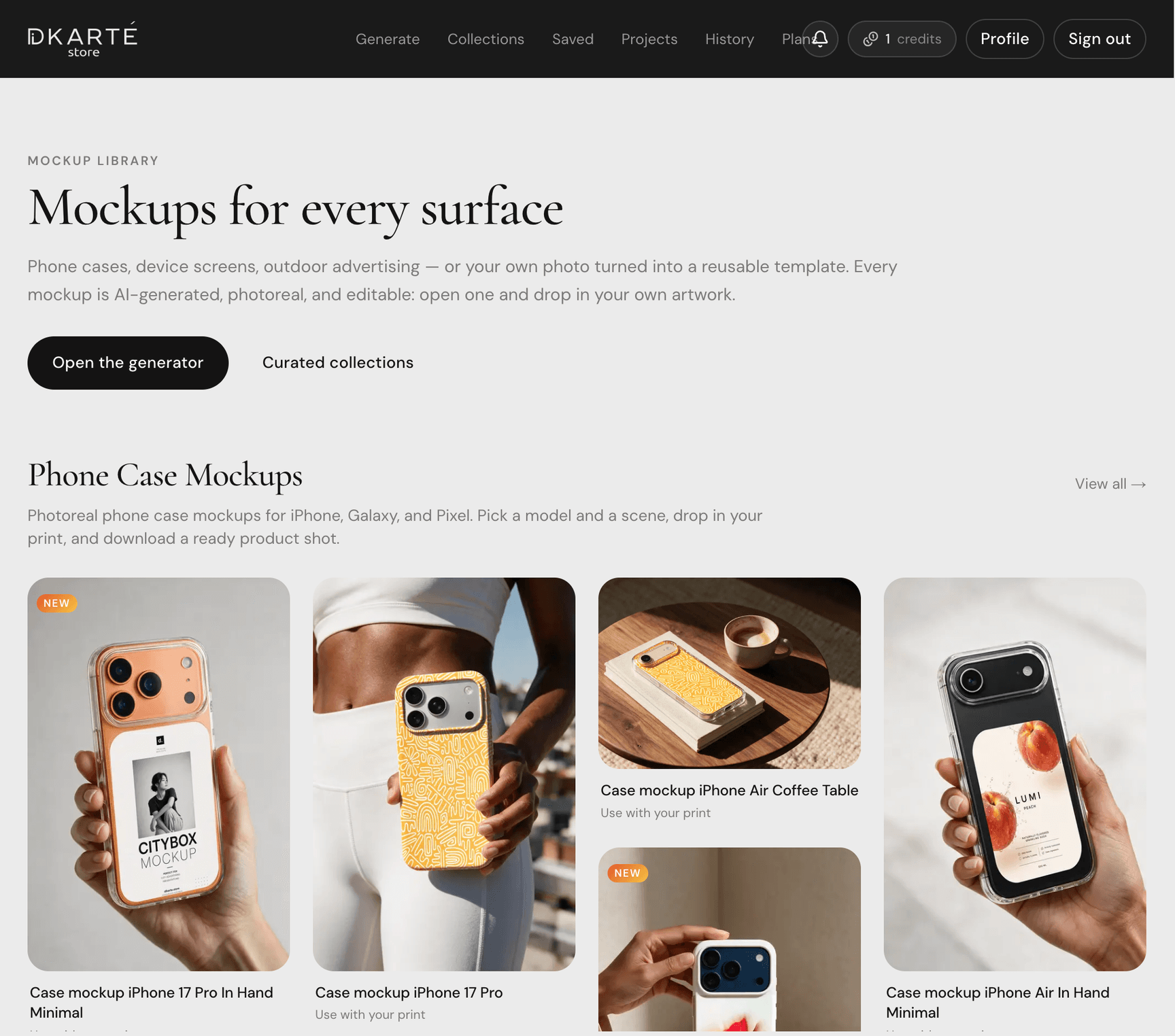
If you do not want to build a scene from scratch, open the mockup library, pick a shot you like, and drop your artwork into it. The scene, lighting, and case mask stay the same — only the print changes, so you skip generation entirely.
Mockups made with the generator
View all →






Tips for better AI mockups
- Upload artwork at the largest size you have — the print is composited, not regenerated, so its resolution is the limit.
- Use PNG with transparency for case prints so the case color shows through.
- Pick two or three styles at once: one studio shot for the store, one lifestyle shot for social.
- Switch the editor to Cover when your artwork must keep its aspect ratio, and Fill when it should stretch to the whole area.
- Use Warp on curved surfaces — a mesh grid bends the print around edges the way the real product does.
- Reserve 4K for print and hero banners where small text has to stay readable.
Frequently asked questions
What makes this the best AI mockup generator?
Most AI tools redraw your artwork and distort logos and text. DKARTE generates the photoreal product and lighting with AI, then composites your original file onto it with a real perspective transform — so your design stays pixel-accurate while the scene looks shot on camera.
Is there a free way to try it?
New accounts get a welcome download credit, so you can create a mockup and download it before subscribing. Paid plans start at $15/month for 30 generations, with Creator at $39/month for 100 and Studio at $99/month for 300. Yearly billing gives you two months free.
How long does it take to generate a mockup?
About a minute per mockup. If you select several styles at once, they render in parallel and you get a full set from a single upload.
What resolution do I get?
Standard renders are high-resolution and ready for web, social, and app stores. The 4K option renders with Nano Banana Pro for print-grade detail and crisper text, and costs 2 credits per card.
Which products can I mock up?
Phone cases for iPhone, Galaxy, and Pixel; device screens for iPhone, iPad, and MacBook; outdoor advertising such as billboards, cityboxes, and posters; plus any photo of your own turned into an editable mockup template.
Can I edit the design placement after generating?
Yes. Every mockup opens in a print editor with four-corner perspective control, mesh warp for curved surfaces, crop and zoom, Fill or Cover fitting, masking tools, and blend modes.
Can I use AI mockups commercially?
Yes — mockups you generate from your own artwork are yours to use in stores, ads, portfolios, and client work under your plan.
Make your first mockup
Upload a design, choose a surface, and get a photoreal mockup set in about a minute.